Google Merchant Center Setup: The Ultimate 2026 Guide to E-Commerce Success
Learn how to complete your Google Merchant Center setup. Master product feed optimization, fix account suspensions, and sync with Shopping Ads and GA4.
Feb 13, 2026
Google Merchant Center setup is the process of uploading your store's product data to Google to make it available for Alışveriş (Shopping) ads and organic listings. The setup involves creating an account, performing site verification and ownership (verify & claim), configuring shipping/tax settings, and creating a product feed. Proper configuration ensures data consistency between your site and Google, preventing account suspension and maximizing reach through Performance Max campaigns.
–
In the competitive e-commerce landscape of 2026, simply listing products on your website is no longer enough. With over 80% of consumers using Google to research products before buying, you need a high-performance bridge between your inventory and the world's largest search engine. That bridge is Google Merchant Center.
A professional Google Merchant Center setup is one of the most strategic moves you can make. It powers your visibility across Shopping Ads, Google Images, YouTube, and the increasingly popular free listings. In the era of AI-powered shopping and Gemini shopping
What is Google Merchant Center and Why is it Critical?
In modern SEO, we talk about product entities. Google no longer just "reads" your page; it seeks to understand your product as a distinct entity with a price, brand, and availability.
By completing your Google Merchant Center setup, you unlock:
Gemini Shopping & AI Discovery: Your products are fed into Google’s AI models for personalized recommendations.
Free Listings: Display your products in the Shopping tab without paying for clicks.
Trust Signals: A verified GMC account acts as a badge of legitimacy, improving your conversion rates.
Merchant Listings Structured Data: Deep integration with your site’s Schema.org markup ensures rich snippets in search results.
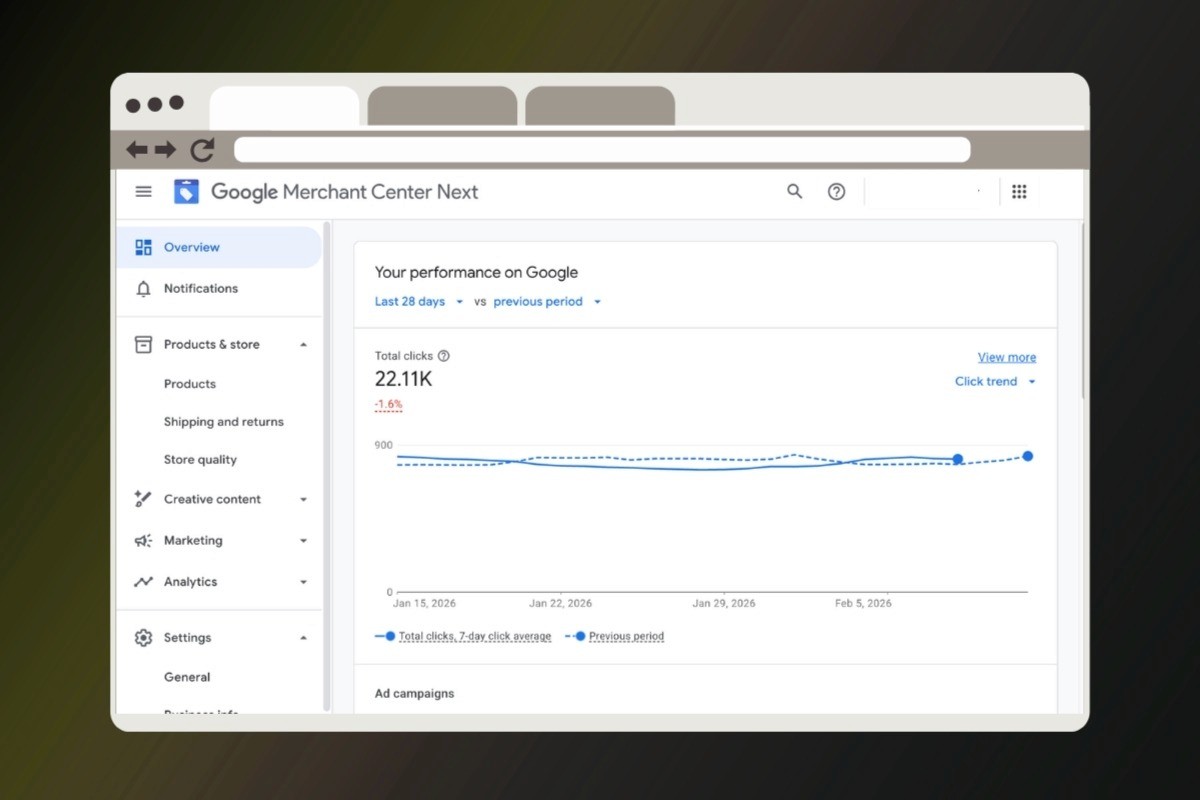
Step-by-Step Google Merchant Center Setup
A successful launch requires attention to detail. Follow these steps to ensure your account isn't flagged before you even begin.
Account Creation & Business Identity
Visit the Google Merchant Center homepage. Use a dedicated business Google account. Ensure your business address and time zone match your website’s contact page exactly to maintain policy compliance.
Website Verification (Verify & Claim)
You must prove you own the domain. How to do Merchant Center site verification? You have three main options:
Google Search Console: The easiest method if you are already verified there.
Google Analytics (GA4): If the GA4 tracking code is on your site, Google can verify ownership instantly.
HTML Tag: Adding a meta tag to your site's
<head>.
Critical Step: Once verified, you must "Claim" the URL to prevent other accounts from using your domain.
Shipping & Refund Policy
Google’s bots crawl your shipping & returns policy and refund policy. If the shipping cost in your feed is $5 but your website checkout says $10, you will face a price mismatch error. Transparency here is a major trust signal.
Creating Your Product Feed & Data Specification
The data source (or feed) is a file that tells Google everything about your products.
Essential Product Attributes
To avoid item disapproval, every product must include:
Title: Keyword-rich (e.g., Brand + Model + Color + Material).
Description: Clear details including product entities and features.
Link & Image_Link: Clean landing page URLs and high-quality images.
Price & Availability: Must be 100% accurate.
GTIN/Barcode: Most brand-name products require a GTIN. If missing, you will see a GTIN/barcode requirement error.
Feed Methods: Scheduled Fetch vs. Content API
Scheduled Fetch: Google retrieves an XML or JSON file from your server daily. Great for data consistency.
Content API: Used by Shopify/WooCommerce for real-time updates on stock status and price.
Troubleshooting: Why is My Account Suspended?
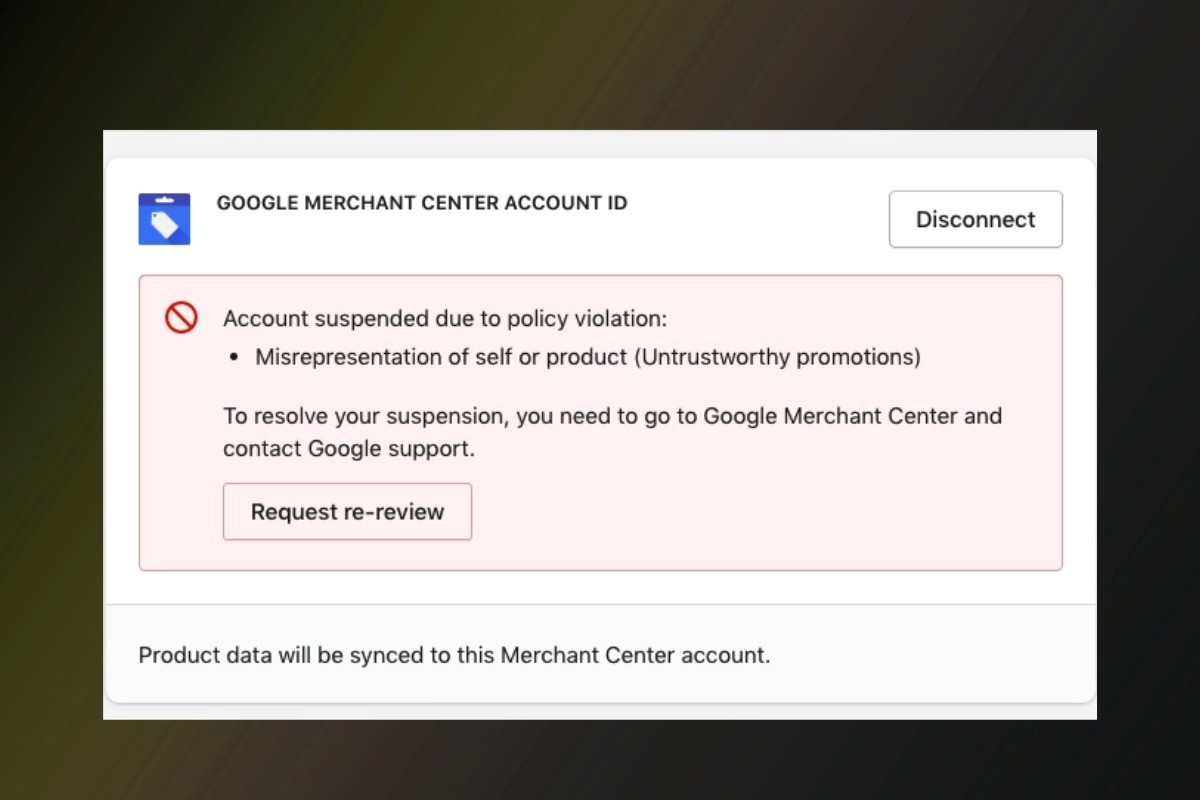
The dreaded Merchant Center suspension usually stems from misrepresentation. This means Google doesn't find your site "trustworthy" enough yet.
Common Errors and Solutions
Error | Cause | Solution |
Misrepresentation | Missing address, phone, or clear refund policy. | Add a physical address and clear contact info to the footer. |
Price/Stock Mismatch | Website data doesn't match the feed. | Enable Automatic Item Updates in GMC settings. |
404/Redirect Errors | Broken links or robots.txt blocking Googlebot. | Fix broken URL issues and check your server logs. |
Low Quality Image | Watermarks, logos, or blurry photos. | Use high-res images with a plain white background. |
If your account is disabled, use the Diagnostics tab to identify account issues, fix them, and then submit an appeal.
Optimizing the Feed for Maximum Performance
Setup is only the first step; product feed optimization is how you win.
Feed Rules: Use these to transform your data (e.g., adding the brand name to every title) without changing your website's backend.
GA4 & Search Console Link: Linking GA4 allows you to track conversions from free listings. Linking Search Console helps Google index your products faster.
Google Ads Connection: Link your GMC to Google Ads to launch Shopping or Performance Max campaigns.
Conclusion & Next Steps
A robust Google Merchant Center setup is the foundation of modern e-commerce SEO. By ensuring data consistency, resolving diagnostics errors, and leveraging AI-supported shopping features, you place your products exactly where your customers are looking.
Action Plan:
Verify and claim your website.
Upload a clean, GTIN-compliant feed.
Link to Google Ads and GA4.
Monitor the Diagnostics tab weekly.
Frequently Asked Questions (FAQ)
1. Is Google Merchant Center free?
Yes. Listing your products in the free listings section costs nothing. You only pay for Shopping Ads.
2. What is a GTIN and do I need it?
A GTIN is a barcode (like a UPC or EAN). If you sell manufactured goods, it is mandatory. If you sell custom/handmade items, use the identifier_exists: no attribute.
3. How long does product approval take?
Usually 3 to 5 business days for the initial review. Subsequent updates happen within hours via scheduled fetch.
4. Why are my products not being approved?
The most common reasons for item disapproval include: missing GTIN (barcodes), text or watermarks on product images, a price mismatch between the feed and the website, or the lack of a valid SSL certificate on your site.
5. I am using Shopify or WooCommerce; how do I complete the setup?
Both platforms offer official Google Channel plugins/apps. Once you install the extension and log in with your Google account, your products are automatically transferred to Merchant Center, and the site verification and claiming process is completed automatically.
6. How can I fix the Merchant Center price mismatch error?
Ensure that the structured data (Schema markup) on your website is up to date and reflects the current price. Additionally, you can enable "Automatic Item Updates" in the Merchant Center settings; this allows Google to read the price directly from your site and automatically revise the feed data.